1Before you buy: pick a method, then see what to prepare
The process has three stages: before, during and after buying. There are three top-up methods, so just pick one.
Three top-up methods, each needing different things
Self-Service Top-Up needs no preparation. Direct UID Top-Up is the fastest. Choose Login Top-Up when you need Support to log in for you.
Self-Service Top-Up (Cloud Gaming)
It's your account, so you know it better than we do. There is nothing to prepare and none of your details need to be shared with us. Don't worry.・After paying, open cloud gaming, log in and buy it yourself
Direct UID Top-Up (fastest)
・Prepare: your Wuthering Waves UID and server, no account password・Process: choose a tier → enter UID at checkout → pay → contact Support to confirm → Support checks and tops up for you
Login Top-Up (Support logs in for you)
・Prepare: your Wuthering Waves UID, server and login details (Official Login recommended)・Process: pay first, then give your account details to Support, who logs in and buys for you. Do not log in to the game in the meantime
Direct UID Top-Up and Login Top-Up: have the right details ready
Self-Service Top-Up needs no preparation. Both Support-assisted methods need your UID and server. Login details are only needed for “Login Top-Up”.
Wuthering Waves UID
9 digits, shown at the bottom right of the game screen and on the profile page. Please use the “Copy” button instead of typing it
Server
Choose from Americas / Asia / Europe / HMT / SEA. If you're not sure, check the login screen or the profile page
Character nickname
Your in-game nickname. Support checks it once more to make sure the top-up goes to the right account
Login details (Login Top-Up only)
All login methods work. Official Login is recommended: no extra two-step verification, fewer steps and smoother delivery. Give them to Support after paying, and Support will only make the purchase after logging in
Lunite tier you want
Decide which tier to buy first, then choose the product with the same amount at checkout
Where is my Wuthering Waves UID? Find it in three steps
The UID decides which account receives the items, so it must be correct.
1
Open the main screen
Log in to the game and reach the main screen (the Terminal icon is at the top right)
2
Open your profile
Tap the “Terminal” icon at the top right. The “UID” below your nickname on the left is your UID. It also appears at the bottom right of the screen
3
Use the copy button
Tap the copy icon next to the UID, and note down the server as well
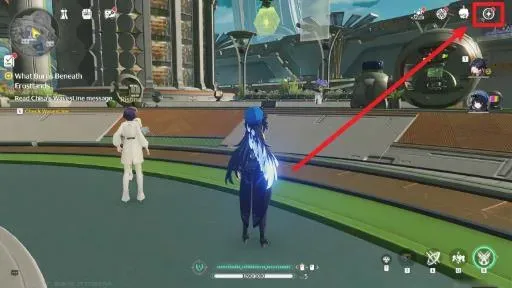
Fig. 1 Tap “Terminal” at the top right
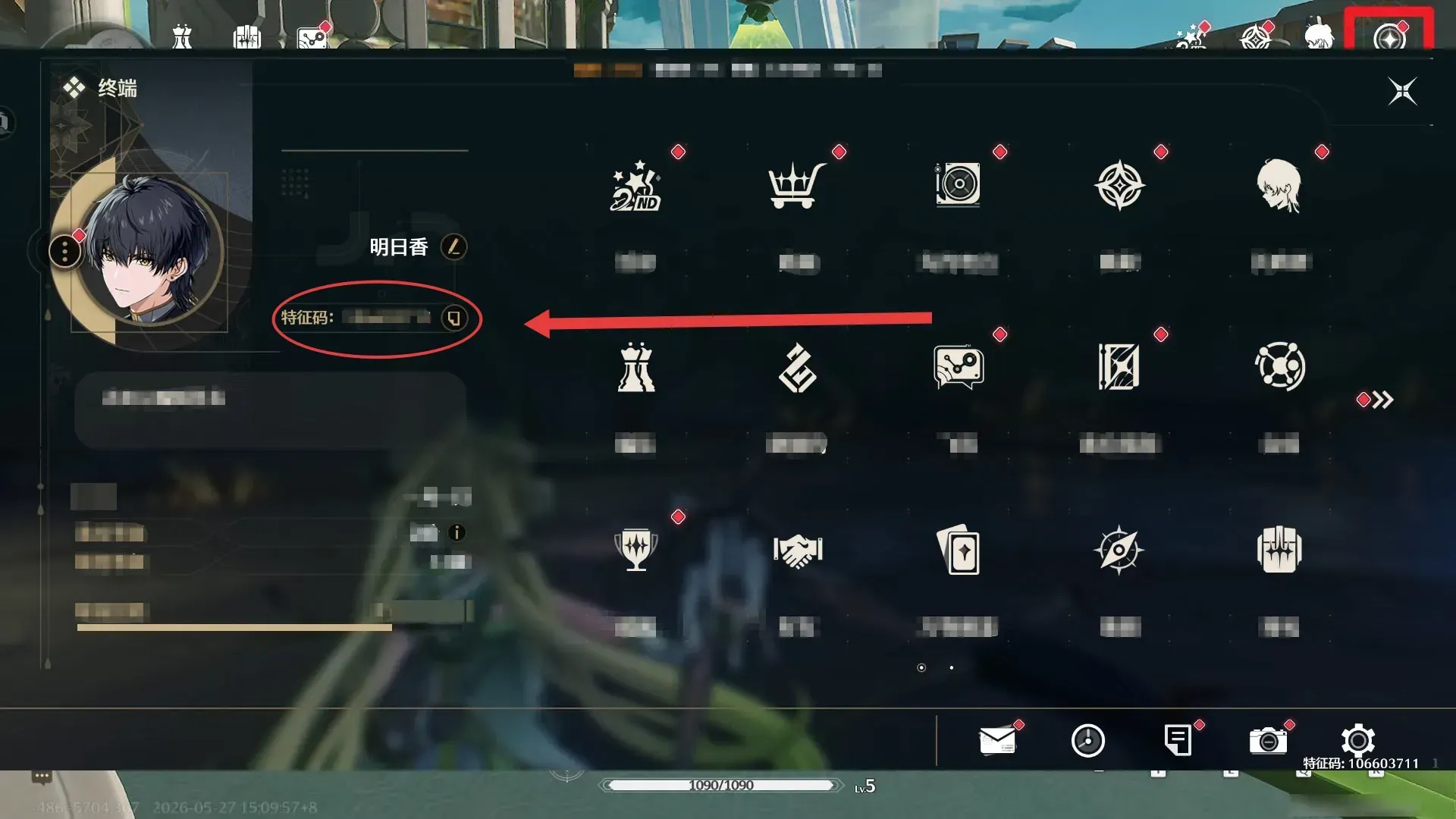
Fig. 2 The UID is shown below your nickname
Players with accounts on several servers, note:Make sure the UID and server belong to the account you want to top up, so it doesn't go to another account.
How to check linked accounts and link your official email
Official Login (linking your email) is recommended. It works for both Login Top-Up and Self-Service Top-Up, with no two-step verification and smoother delivery. If you haven't linked yet, follow the five steps below before ordering.
1
Open Terminal
On the game's main screen, tap the Terminal icon at the top right, then tap the gear at the bottom right to open Settings
2
Open account settings
Tap the “Account” tab at the bottom of the left side of Settings (red box)
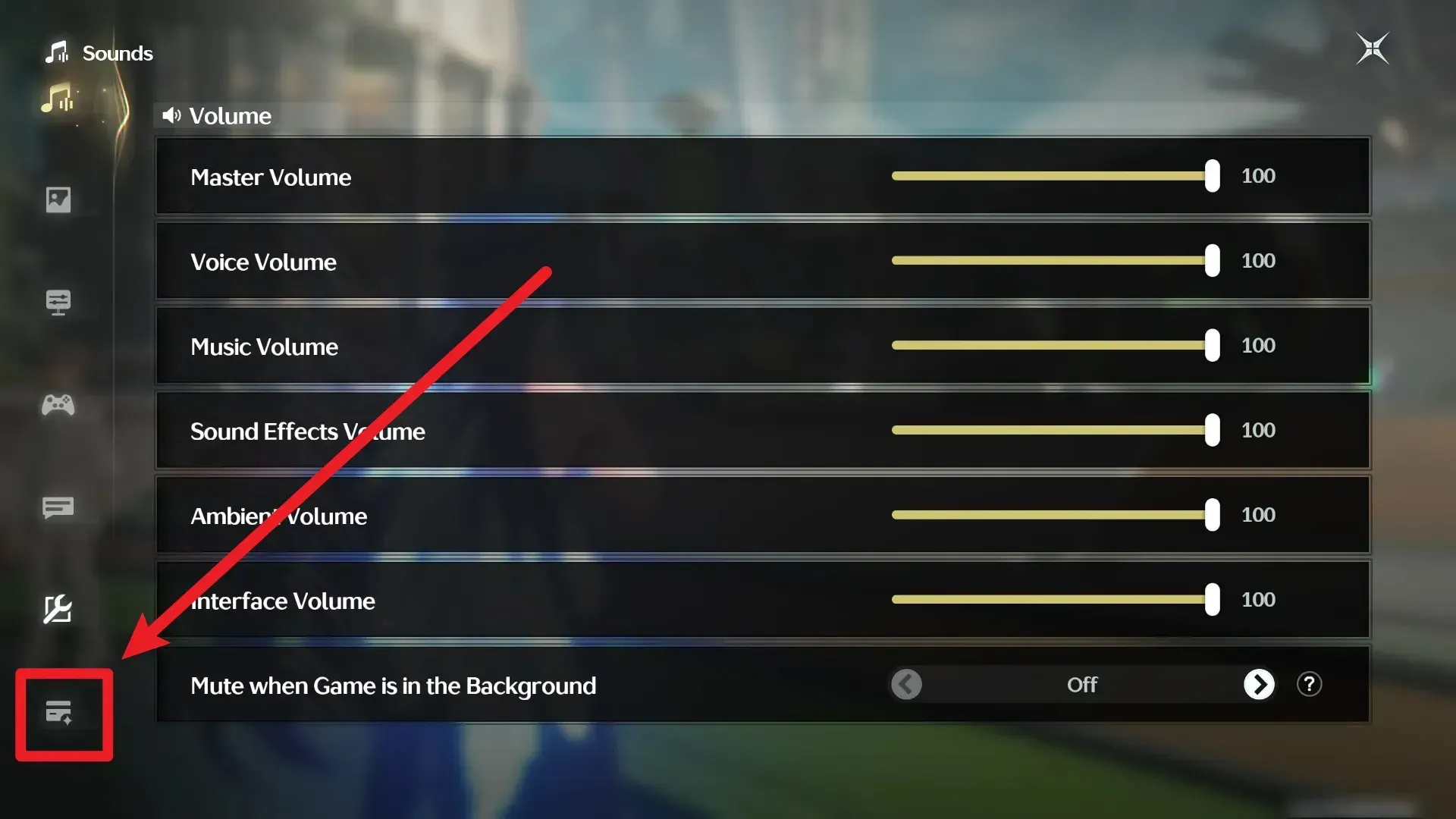
3
Open User Center
In account settings, tap Go on the User Center row
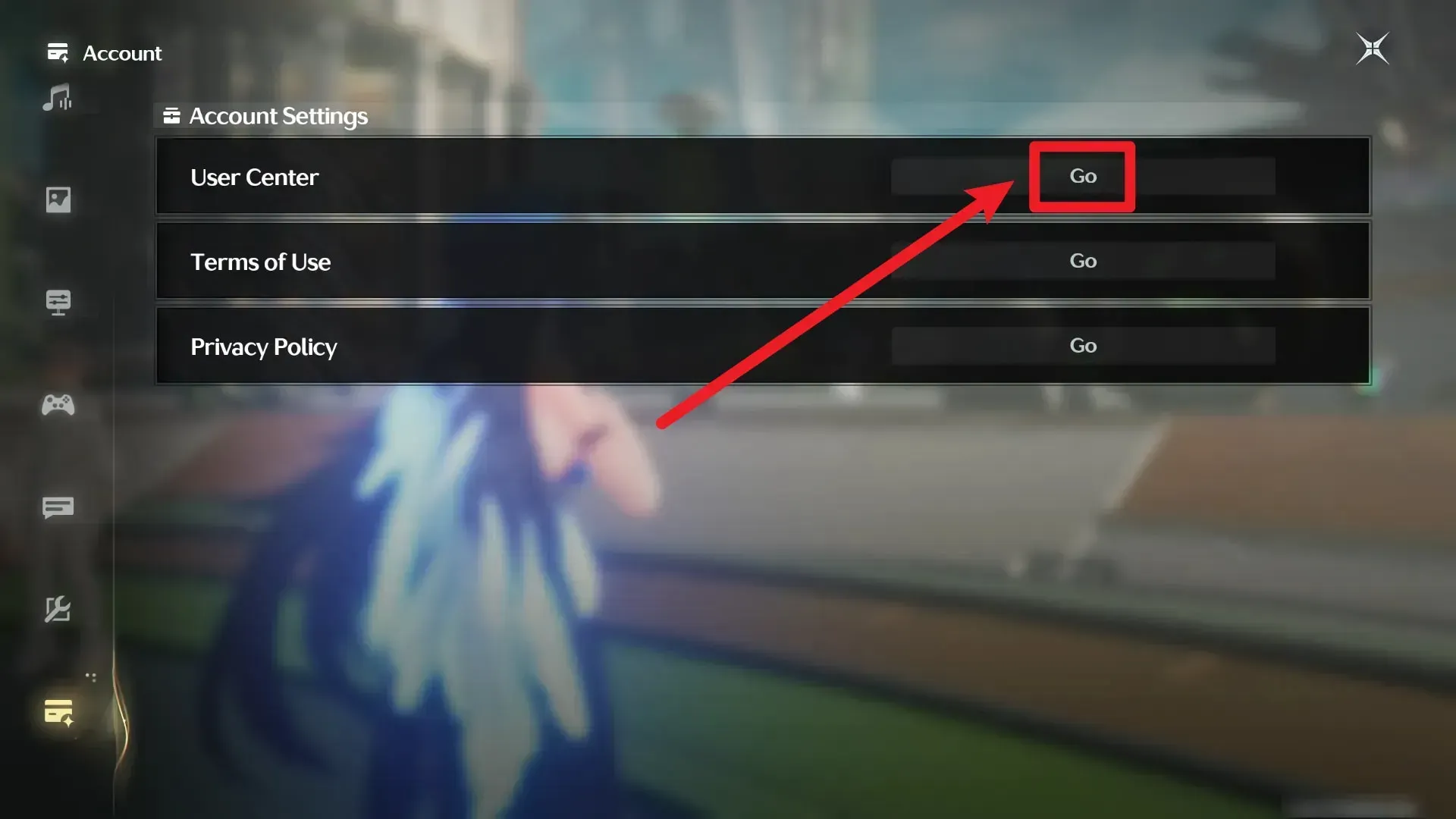
4
Check linked accounts
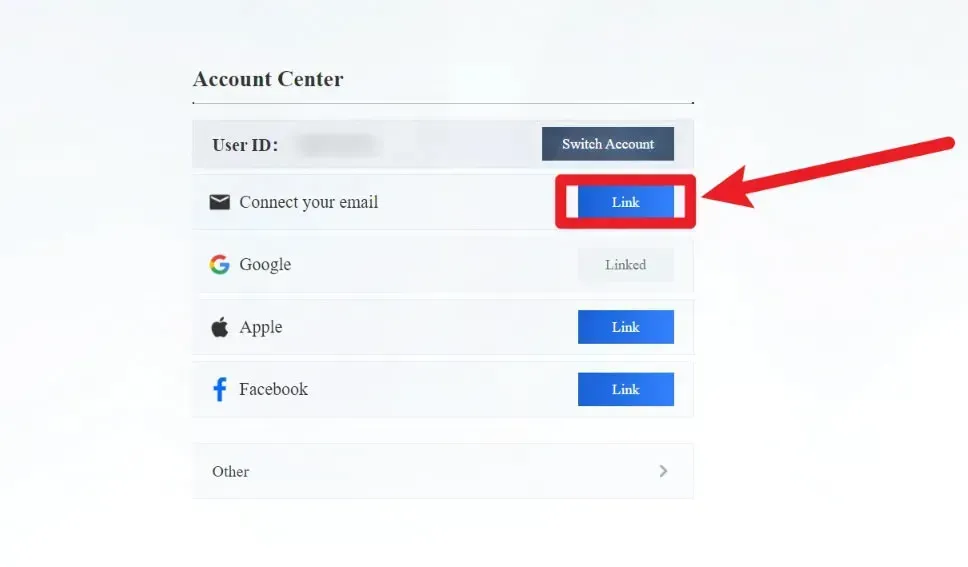
The User Center shows your User ID and the link status of each login method (Linked means bound). If no email is linked, tap Link next to Connect your email
5
Enter your email and set a password
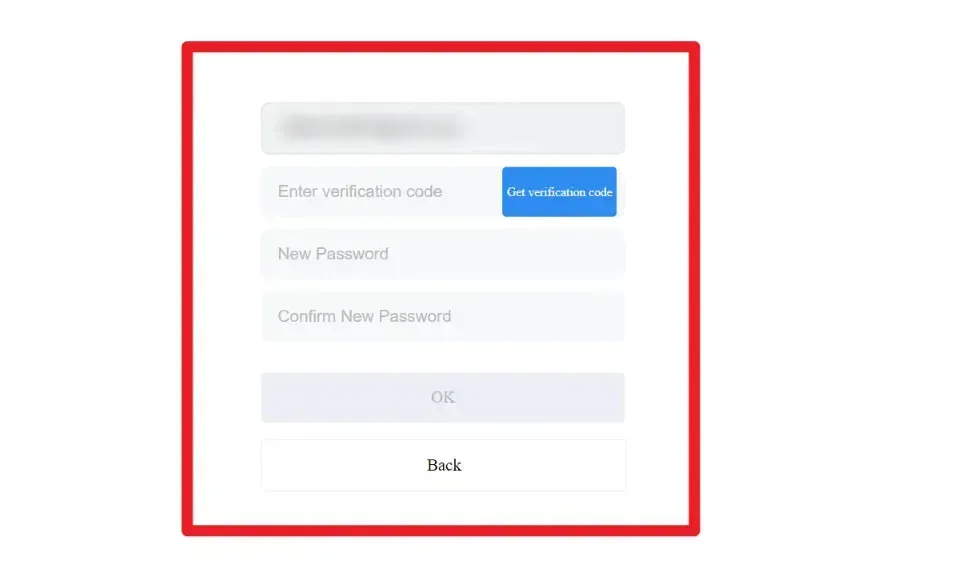
Enter your email, tap Get verification code, enter the code, then set and confirm a new password and tap OK. When the page shows Linked, you are done
Account safety: remember these before ordering
Login Top-Up needs Support to log in to your account, so follow the list below. Direct UID Top-Up needs no password.
Do
・Only submit details through the Grecharge website, Discord or Support・Login Top-Up: give your account details to Support after paying. Official Login is recommended, with no extra two-step verification・Do not log in to the game during Login Top-Up, and change your password right after it finishes・After delivery, compare with the Lunite tier you bought and check that the amount matches
Don't
・Do not follow instructions from strangers outside these channels, and do not post account details in chats to strangers・Do not place the same order repeatedly in a short time・Always check the UID with the copy button, never type it by hand
How Login Top-Up handles your data:Login Top-Up needs Support to log in to your account and buy for you. After logging in, Support only makes the purchase and does not use any other features. When finished, your account is logged out and the login record is cleared. You will be notified and can then log in to the game to check. Encryption only protects data in transit and does not mean your account carries no risk, so please follow the “Don't” list above.
Fees and refunds: a quick look before you pay
Take a quick look at the fee and refund rules before paying.
Fees
Fees are charged separately and depend on the payment method. Rates differ, and the final amount is the one at checkout
Currency
Priced in your local currency, with no extra cross-border transaction fee
Wrong UID
Once Lunite is delivered to that UID's account it can't be taken back, and such cases can't be refunded. Please check with the copy button before ordering
Not received
Self-Service Top-Up: it's delivered as soon as you buy. If you didn't get it, go to “Account → Order History” to reopen Self-Service Top-Up. UID / Login Top-Up: first restart the game. If it still hasn't arrived after 30 minutes, contact Support with your order number. For any problem, please contact Grecharge Support with your order number
Request a refund
You can apply within 7 days of ordering, and it usually takes 3–14 days to process. Orders that have already been topped up successfully are not eligible for a refund
Where refunds go
A refund may go back to your Grecharge G-coins balance, the original payment account or bank card, as decided by the platform based on the order. Not every refund goes back the original way. See the Refund Policy for details
2While buying: pay, act, receive
Self-Service Top-Up has six steps that you complete yourself. Direct UID Top-Up and Login Top-Up have four steps handled by Support.
Self-Service Top-Up in six steps (Lunite as an example)
Works for all Lunite tiers and Lunite Subscription.
1
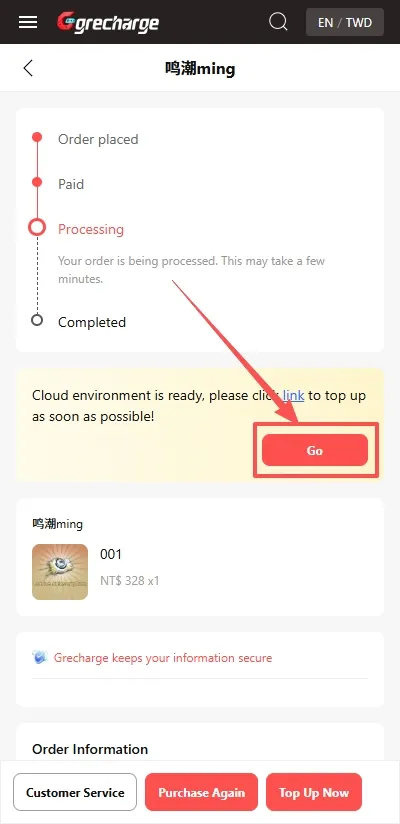
After paying, tap “Go” to start
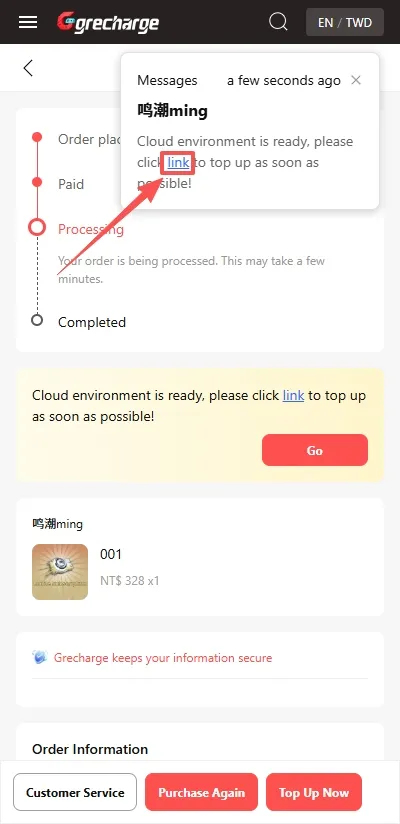
After paying, return to the order page. When you see the “Cloud environment ready” notice, tap “Go” in the red box. You can also tap the link in the message notification at the top
2
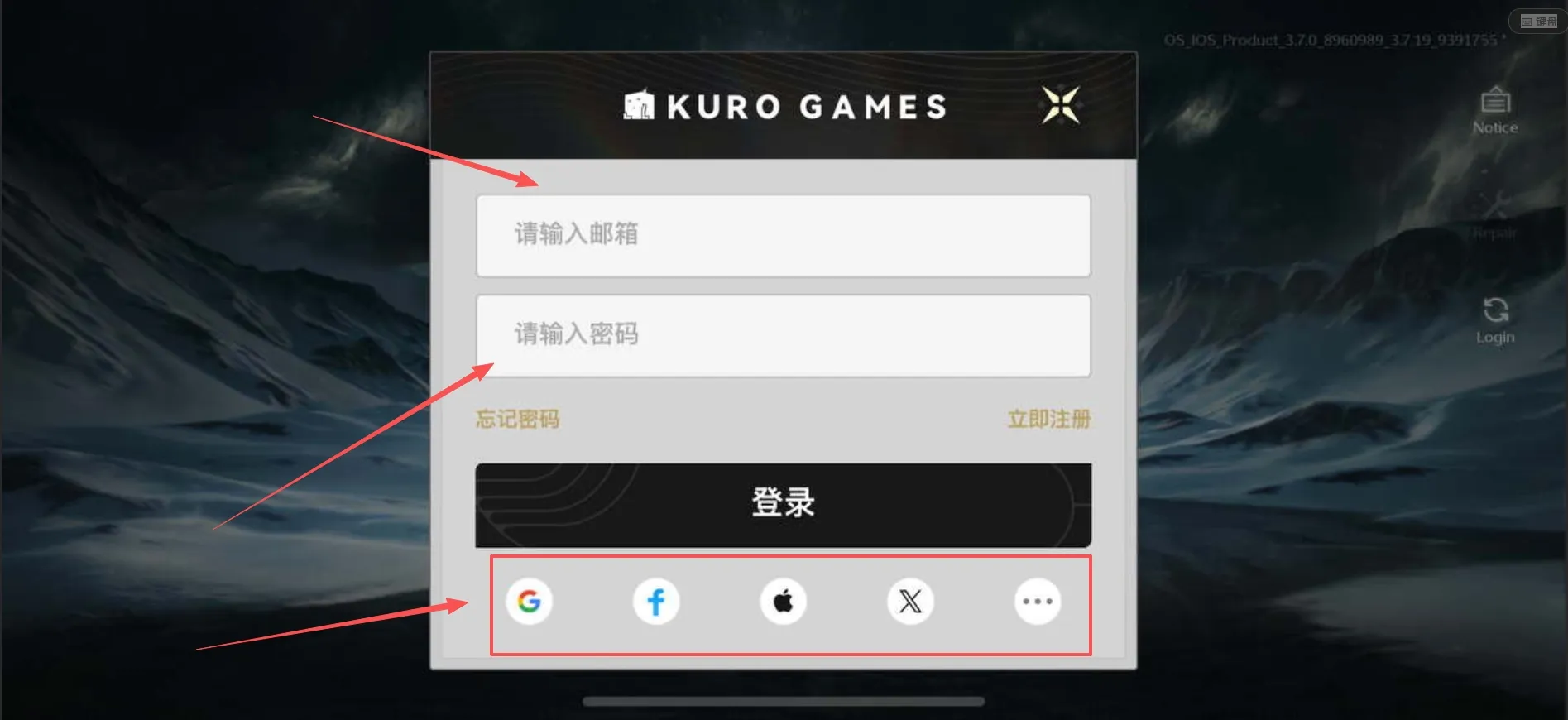
Enter your account, or use third-party login
In the cloud gaming window, enter your account to log in, or tap a third-party login in the red box below (Google, Facebook, Apple, X, etc.). Official Login is recommended, with no extra two-step verification
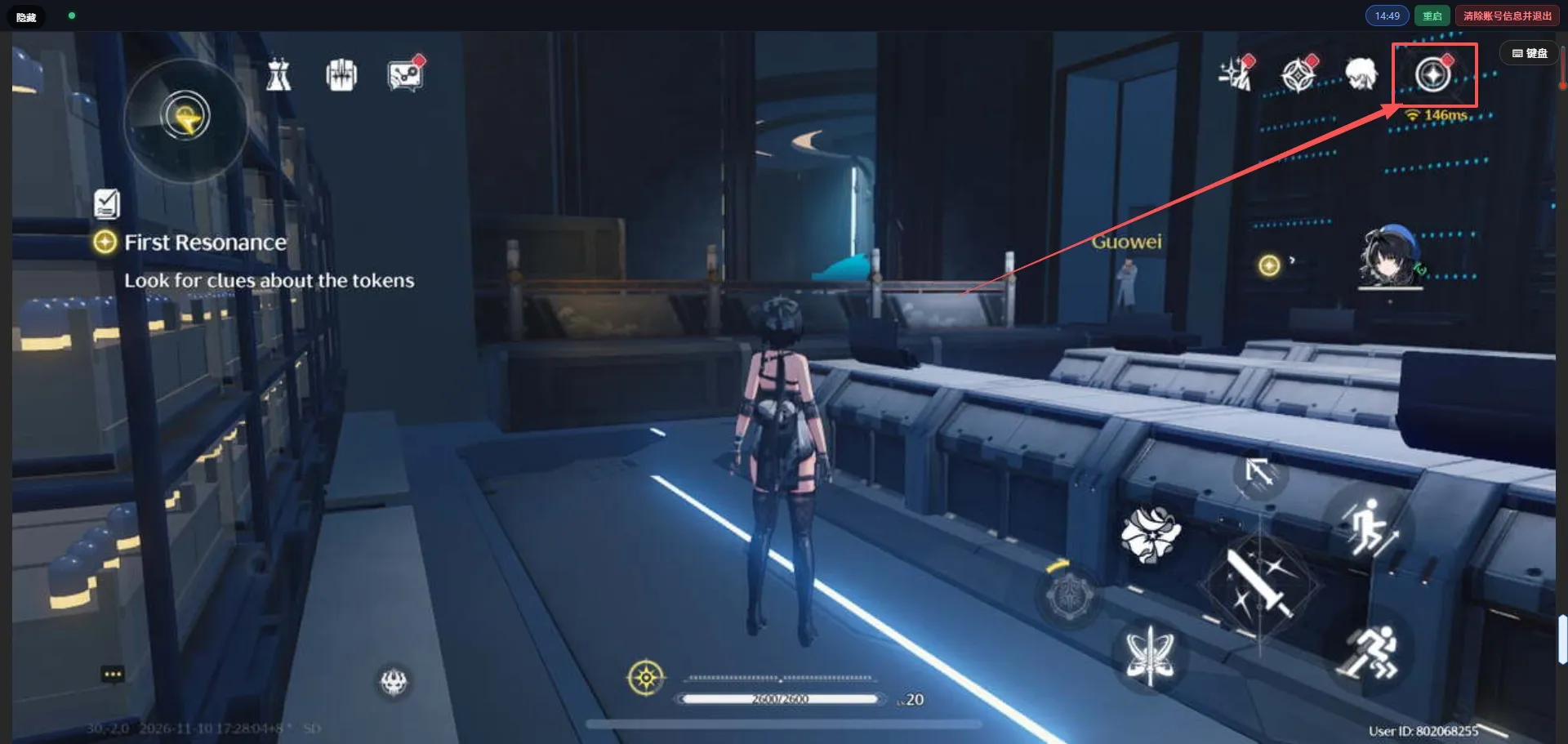
After logging in to the game, tap the icon in the red box at the top right to open the Shop. A countdown is shown at the top of the window, so finish buying before it ends
4
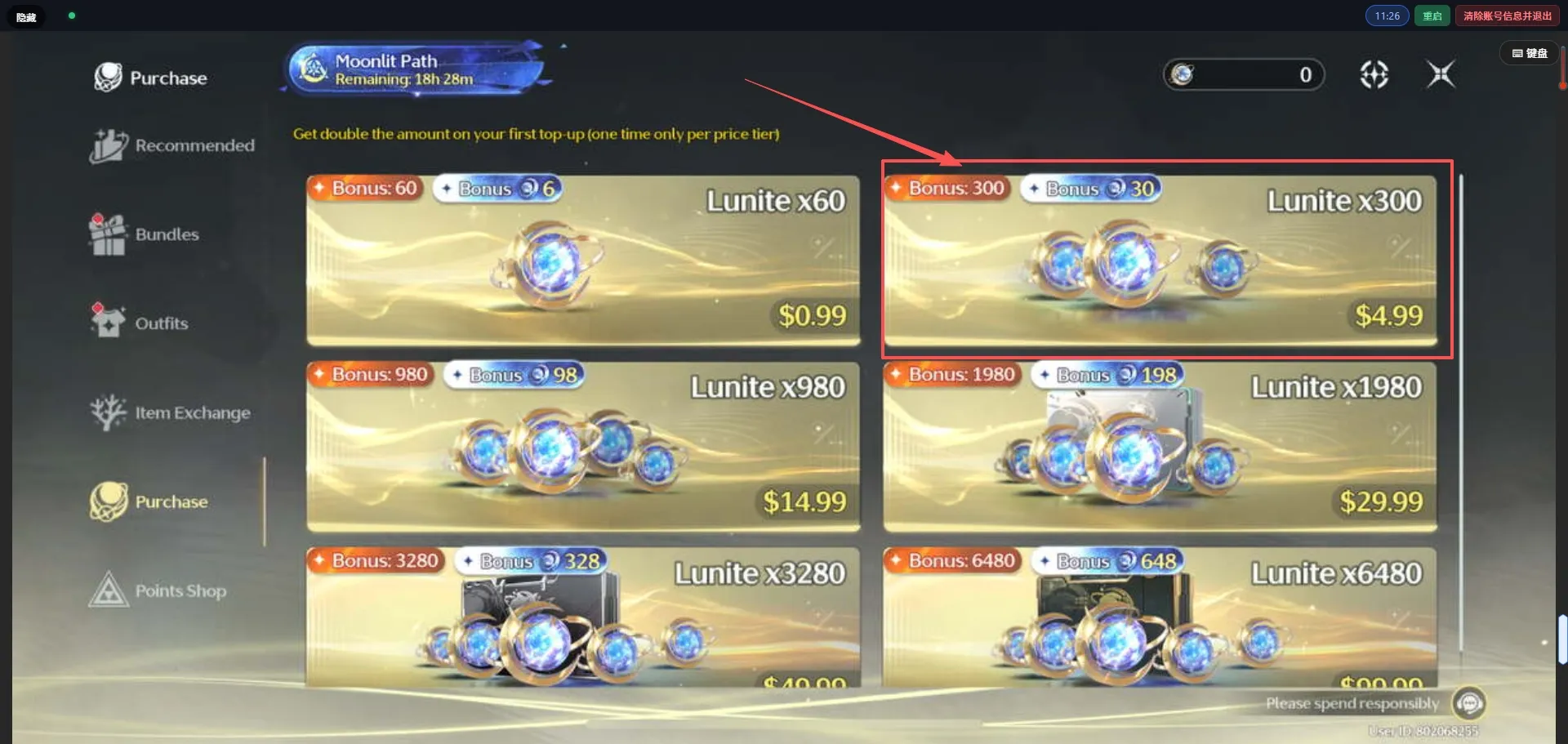
Choose the matching tier and buy
On the “Purchase” page, tap the tier you paid for (the red box shows Lunite ×300) and finish the purchase as the game prompts
5
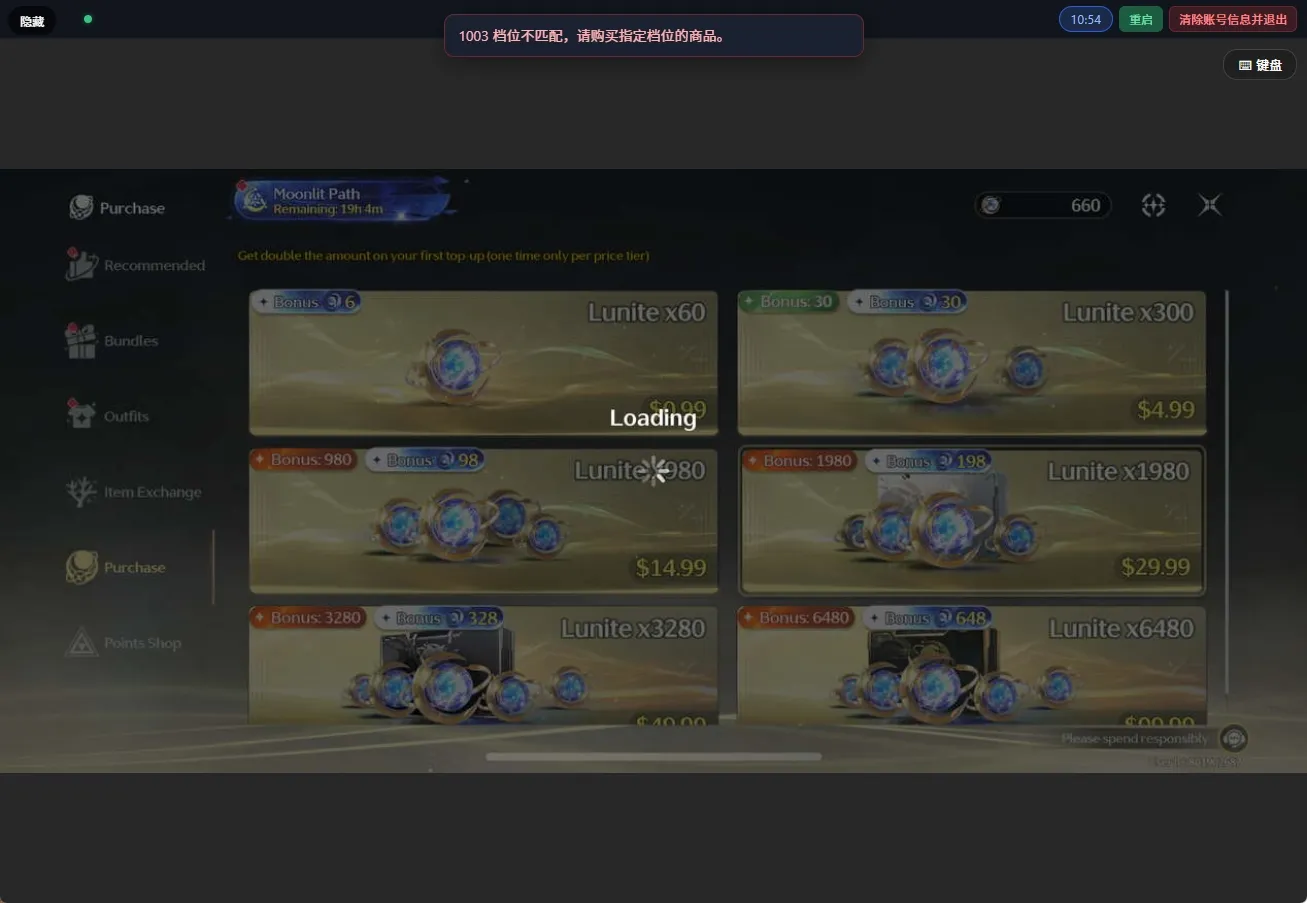
Note: only the specified tier can be bought
If you tap a tier different from your order, the game will show “Tier mismatch, please buy the specified tier”. Please choose the tier you paid for instead
Clear account info and exit
6
After delivery, it clears and exits automatically
Wait for delivery. When done, tap the red “Clear account info and exit” at the top right. The cloud session is wiped automatically and no login record is left
◆ Peace of mind:After you finish buying and stop using it, the cloud session is wiped automatically and no game login record of yours is kept.
◆ Countdown ran out?If you don't enter the game before the countdown ends, the order may need to be submitted again. Find the order in “Order Center” to continue, or contact Support. Countdown time:{{countdown}} minutes.
Direct UID Top-Up / Login Top-Up in four steps (Lunite as an example)
Choose your method first. Direct UID Top-Up only needs steps 1 and 2, then contact Support.
Choose the Lunite tier and enter your Wuthering Waves UID and server at checkout. For Login Top-Up, add your account details too. Check everything once, and you can add several tiers to the cart and check out together
Check out with the payment method that suits you. Fees vary by payment method, and the amount at checkout is what counts. Please finish paying before the next step
After paying, tap the Support button at the bottom right of the platform and give your order and account details (Login Top-Up needs login details; for the UID method you only confirm the order)
4
Confirm the in-game purchase
Support checks your details and tops up for you. During Login Top-Up, please wait and don't log in to the game. When done, Support will notify you, then log in to check
Top-up time: Self-Service mostly 5-10 minutes
Self-Service Top-Up is a separate top-up method where you decide everything yourself, and the top-up time is the same for different products.
Product type
Typical delivery
Details
Self-Service Top-Up (all Lunite tiers, Lunite Subscription (UID / Login Top-Up))
5-10 minutes
Delivered as soon as you buy, and you do every step yourself. Time varies slightly with queue waiting
Direct UID Top-Up / Login Top-Up
5-30 minutes
Direct UID Top-Up is the fastest. Login Top-Up needs Support to log in and buy, so please don't log in to the game in the meantime
Lunite Subscription (UID / Login Top-Up)
5-15 minutes
Claim it right after delivery, then log in daily to collect Astrite
Large orders (UID / Login Top-Up, $99.99 and above)
10-60 minutes
An extra risk check is needed, so please wait patiently
Payment hours and speed (Direct UID Top-Up / Login Top-Up)
You can order 24 hours a day. Support just gets faster or slower depending on the hour and how busy events are.
Daytime (normal)
Fastest handling, most items done within 30 minutes
Late night
Queues may be longer, so we suggest avoiding midnight to early morning
Major event launch days
Orders surge and handling slows, so we suggest ordering early
3After buying: check your Lunite arrived, and reach out if there's a problem
After paying there's one last step: checking and after-sales.
After delivery: check what you bought
Self-Service Top-Up: after finishing the in-game purchase, check your in-game mail and inventory,make sure the Lunite amount matches the tier you wanted, and remember to log out of the cloud gaming window。Direct UID Top-Up / Login Top-Up: after Support says it's done, log in to the game to check the amount. For Login Top-Up, please change your password right away.
What if I enter the wrong Wuthering Waves UID?
This is the part of Direct UID Top-Up that needs the most care: Lunite goes straight into that UID's account and can't be taken back once sent. Here are three wrong-entry cases.
Wrong entry
Result and what to do
Wrong UID that still matches a valid account
The item is topped up to someone else's account, which usually can't be recovered or refunded
Entered your own alt account
The item goes to the alt account and your main account won't receive it. Players with accounts on several servers should be extra careful
Invalid UID (account not found)
The top-up usually can't be completed. Please check the UID and order again, or ask Support for help
Already entered it wrong?If you notice a mistake, contact Support right away with your order number, transaction time and the UID you entered. If the UID is correct and it just hasn't arrived, see “What if I didn't receive my Lunite?” below.
What if I didn't receive my Lunite?
Self-Service Top-Up:It's delivered as soon as you buy, and you do every step yourself. If you didn't receive it, go to “Account → Order History” to reopen Self-Service Top-Up. If Self-Service Top-Up has a problem, contact Grecharge Support with your order number.Direct UID Top-Up / Login Top-Up:First restart the game. If it hasn't arrived after 30 minutes, contact Support with your order number, and they will check the progress or resend it.
Ready? Place your order
Self-Service Top-Up: after paying, open cloud gaming and buy it yourself. Direct UID / Login Top-Up: enter your UID at checkout and pay, then contact Support.
Back to top to choose a top-up product





 Grecharge-beveiliging
 .Lunite Bundle