How to buy?
Three stages: before, during and after purchase.
1 Before buying|Which of the two methods should you choose?
For the same product, pick one method based on your needs.
Self Top-Up
Typical delivery
5–10 minutes
What to prepare
An account you can log in to the game with
Login Top-Up (support logs in for you)
Account info needed?
Yes (enter when ordering)
Typical delivery
5–30 minutes
What to prepare
Account details, UID, and the name of the pack you want to top up
Get your info ready
Prepare according to the method you choose.
Self Top-Up: prepare the following
Game account
An account you can log in to the game with is enough; you don't need to tell us anything.
Login Top-Up (support logs in for you): prepare the following
Game account
Your Last War: Survival account & password / verification code, entered along with your order details
User ID
Your Last War: Survival UID, entered when you order
Verification code
Support may need a verification code when logging in. After payment, keep your inbox reachable and provide it when support notifies you
Pack screenshot
A screenshot of the pack you want to top up, given to support after payment to verify the tier
Find your character UID
UID is needed for UID top-up and Login Top-Up; Self Top-Up does not need it.
UID location
Tap the avatar at the top left → My Profile → Settings → Copy ID
Format
Use the username shown in your in-game profile; there is no fixed length
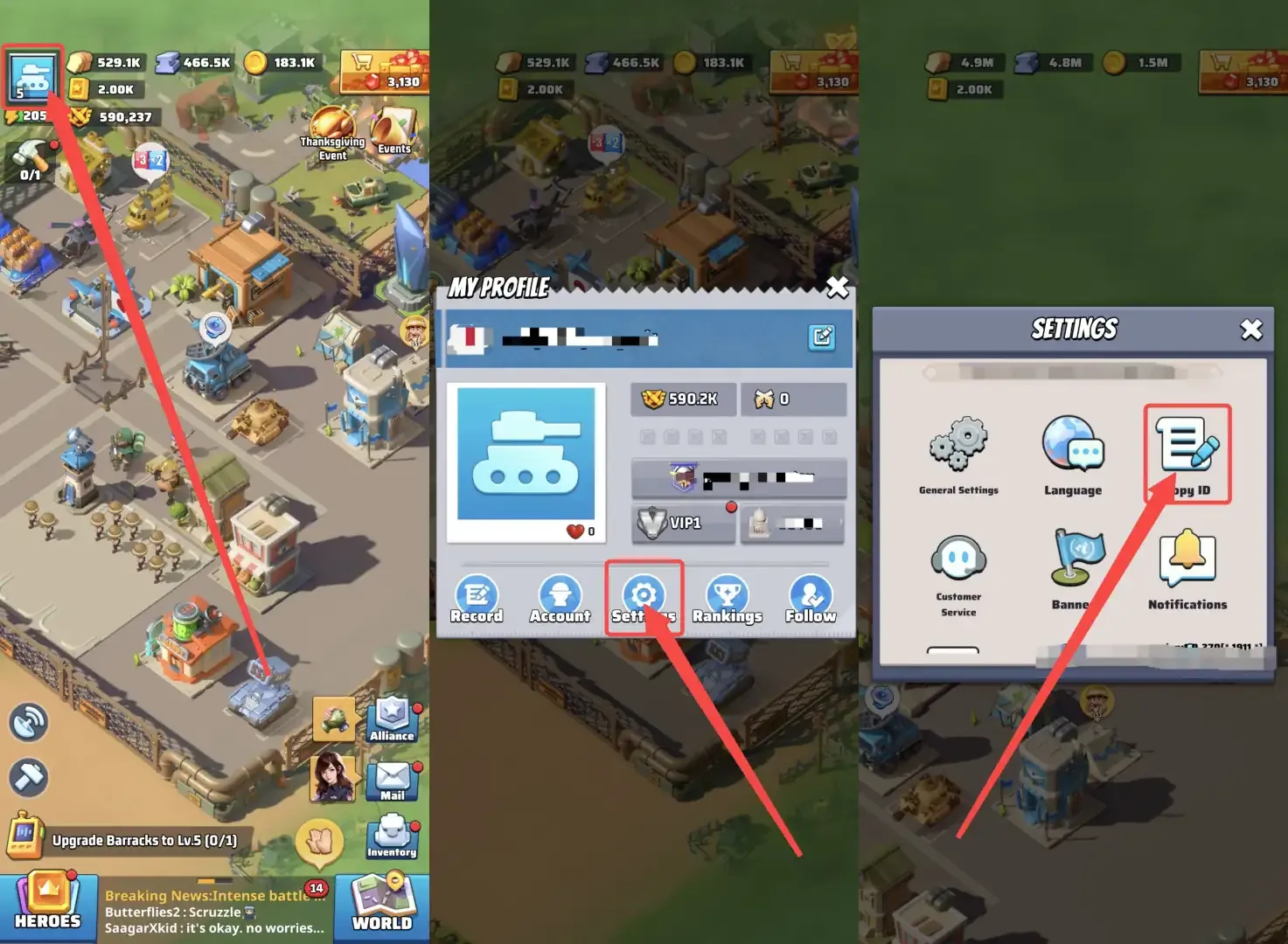
English UI screenshot: avatar → Settings → Copy ID
Account linking / login method check
For third-party login, first confirm that an email is linked.
Available logins
Last War ID、Google
Linking path
1. After logging in, tap your "avatar" at the top left2. Tap "Account" at the bottom3. Tap "Register Last War ID"4. Enter the email address you want to link and tap "Send Code"5. Check your inbox for the verification code and enter it to finish linking
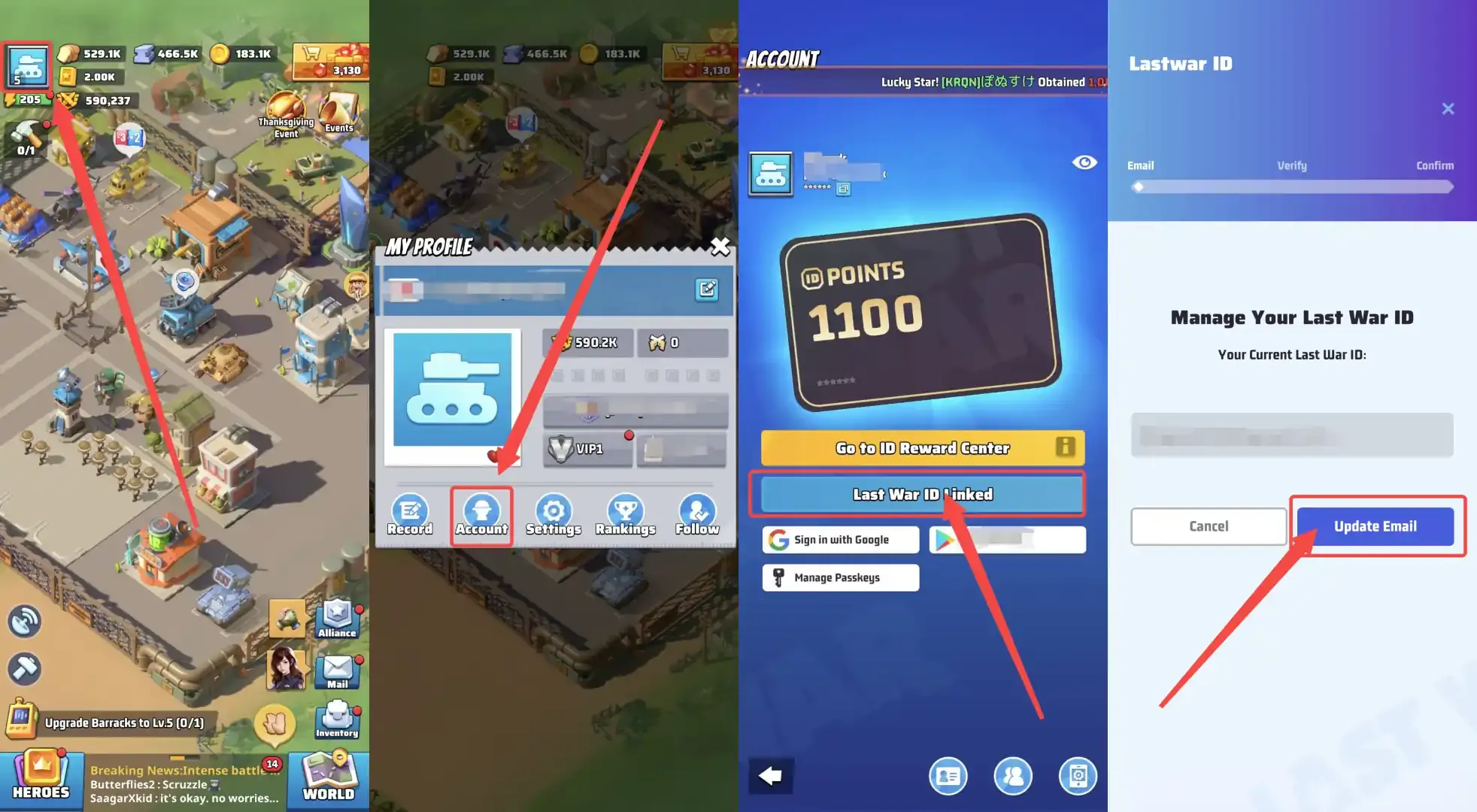
English UI screenshot: avatar → Account → Last War ID → enter email
Account security
Do
・Only submit information through the Grecharge website, Discord or customer support・Login Top-Up: provide info after payment, and change your password right after completion・Self Top-Up: always clear your login info and exit when done・After delivery, compare with the tier and confirm the quantity matches
Don't
・Do not follow instructions from strangers outside these channels・Do not place the same order repeatedly in a short time・Do not log in to the game yourself during Login Top-Up
Fees, payment and data security
Fees
Priced in local currency, fees extra; the checkout page is final.
Payment methods
Google Pay, Apple Pay, VISA, Mastercard, etc., varying by region; the checkout page is final.
Data security
Login information is used for this order only; it is deleted within 24 hours after completion, and kept for up to 7 days at most for after-sales checks.
Refunds
Virtual items are non-refundable once delivered; if not yet delivered, contact support
Scope
We only provide items that already exist in the game and do not modify game values.
2 Buying|Self Top-Up in 6 steps
After payment, complete the purchase in the cloud gaming window before its countdown ends.
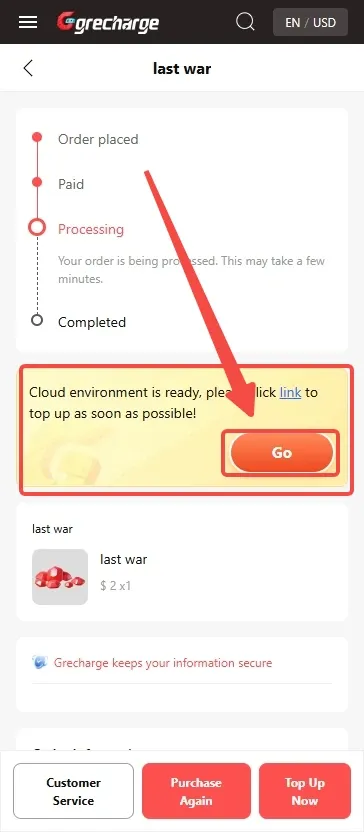
1
After payment, tap the prompt on the order page
After payment, go to the order details page. When "Cloud environment is ready" appears, tap the orange "Go" button to enter cloud gaming.
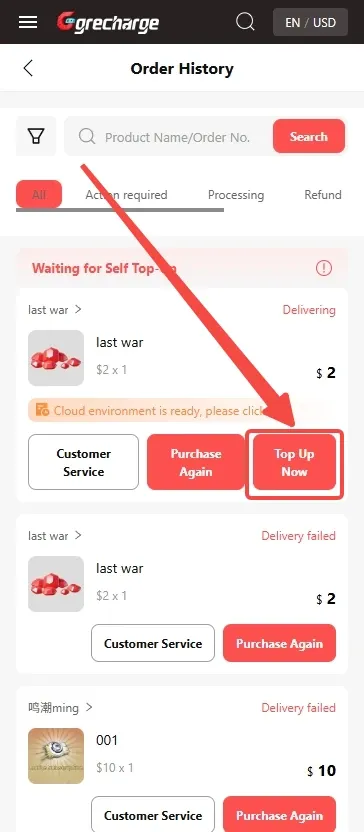
2
Or open it from Order History
You can also go to "Order History", find the order in progress and tap "Top Up Now" in the red box on the right.
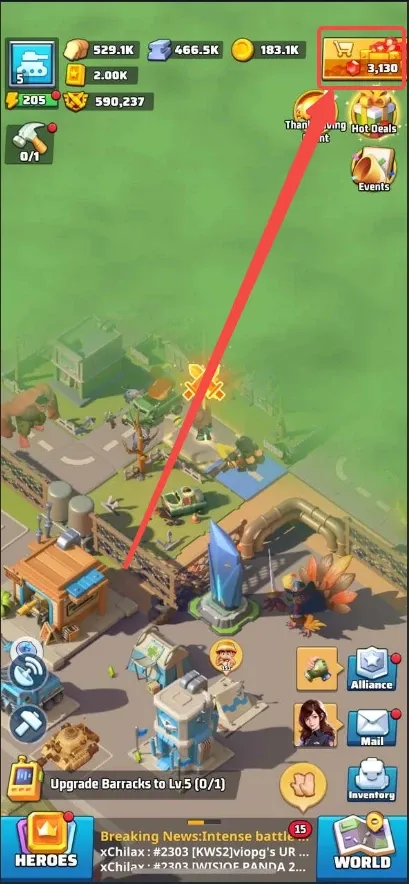
3
After logging in, tap the pack icon at the top right
After entering cloud gaming and logging in, tap the pack icon at the top right of the main city.
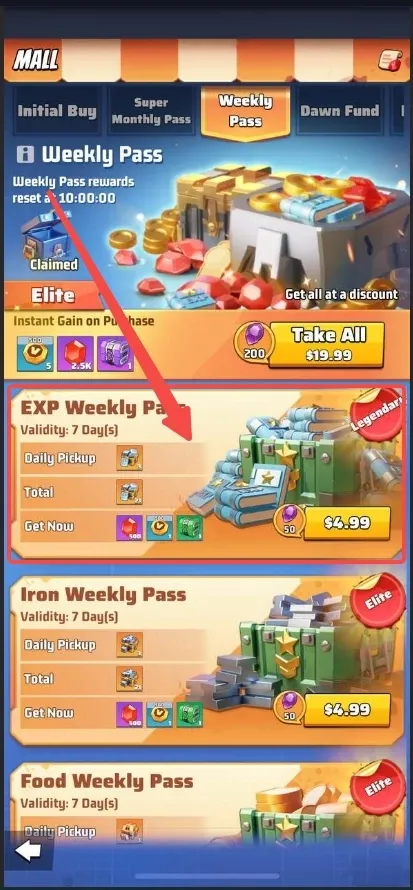
4
Pick the pack you paid for
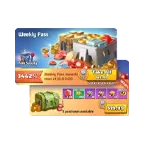
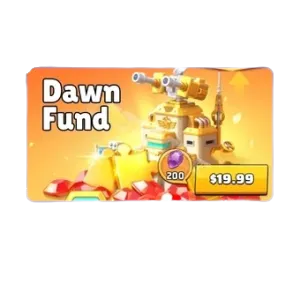
Find the item you paid for on the pack page and tap the price button on the right.Pick the pack that matches the amount you paid exactly; a higher or lower one can't be purchased.
5
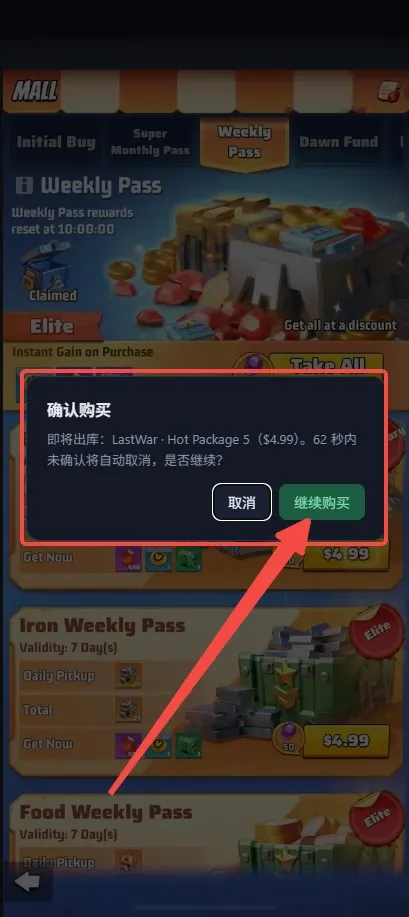
Confirm purchase
After checking the item and price, tap "繼續購買"; the window has a countdown, so finish before it ends.
6
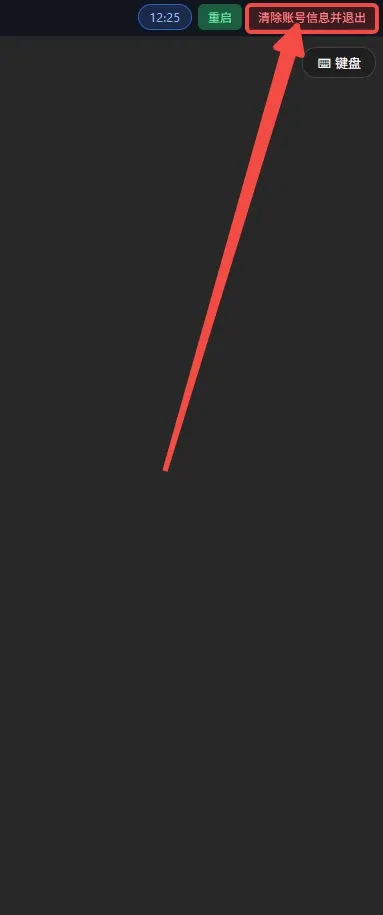
Confirm delivery, clear account info and exit
Once you've confirmed delivery in your bag or mail, tap "清除賬號信息並退出" in the red box at the top right; the cloud environment is cleared automatically.
Note: only buy the specified product.Only buy the product you paid for; if you tap the wrong one, cancel first and choose the correct one.
Peace of mind:After the purchase is done and you finish, the cloud environment is cleared automatically and leaves no game login record.
Countdown timed out?If you don't enter the game before the countdown ends, the order may need to be resubmitted. Find the order in "Order Center" to continue, or contact support.
2 During|Login Top-Up (support buys) in 4 steps
The step that takes the most time is confirming that your info and pack are correct, so don't skip any step.
1
Choose a product and pay
Open the product page, choose a tier, check the amount and pay.
2
Provide login info
After payment, as support notifies you, provide game account & password / verification code, UID and a screenshot of the pack to top up; keep your inbox reachable meanwhile.
3
Wait for manual top-up
Support logs in and completes the purchase; meanwhile pleasedo not log in to the gameto avoid login conflicts.
4
Log in and confirm delivery
After the completion notice, log in, check that the contents match the screenshot, andchange your password right away。
Estimated delivery time
Orders accepted 24 hours a day; support speed varies by time of day.
Method
Typical delivery
Description
Self Top-Up
5–10 minutes
May vary slightly with queue. Don't close the window or log in from another location during the process. During events, timing depends on order volume, so top up early
Login Top-Up
5–30 minutes
Support logs in and buys; do not log in to the game meanwhile
Late night and event launch days may have longer queues; we suggest ordering early.
3 After|Confirm delivery; contact us if there's a problem
One last step after payment: confirmation and after-sales.
After delivery: check what you bought
Self Top-Up
After the in-game purchase, check the Rewards window plus in-game mail and bag to confirm the quantity matches what you wanted, and remember to tap "Clear account info and exit".
Login Top-Up
After support notifies you of completion, log in to the game to confirm the quantity and change your password right away.
What if the UID is wrong?
Wrong entry
Result and handling
Wrong UID but it matches a valid account
The product will be topped up to someone else's account; it usually cannot be recovered or refunded
Entered your own alt account
The product will be topped up to the alt account, not your main account
Invalid UID (account not found)
Top-up usually cannot be completed; please check the UID and reorder, or ask support for help
If you've already entered it wrong:Contact support immediately and provide the order number, transaction time and the UID you entered.
Haven't received it?
Self Top-Up
Go to "Profile → Order History" to relaunch Self Top-Up; if there's still a problem, contact Grecharge support with your order number.
Login Top-Up
Try restarting the game first. If it still hasn't arrived after the estimated time, contact support with your order number to check the order.
Why is an order delayed?
Possible reasons
Description
Account info entered incorrectly
The account, password or UID entered when ordering is wrong, so support cannot log in or the product is sent to the wrong place; please double-check
Login issue
A verification code or a different-location login check is needed; provide it as support notifies you. A different-location login notice during support login is normal
High order volume during events
During events, processing time depends on order volume; we suggest topping up early
FAQ
What's the difference between the two top-up methods?
With Self Top-Up you log in and do everything yourself, with no password to hand over. It's our recommended option; with Login Top-Up, support logs in for you.
Can I use the account during Login Top-Up?
Please don't log in to the game, to avoid clashing with support's login and interrupting your order. We suggest changing your password afterwards.
Why are prices different?
Different top-up methods have different discounts.
Ready? Place your order
Pick a product, pay, and follow the steps; contact support anytime if you run into problems.
Back to top to choose a tier
Having problems?




 Self Top-Up
 20%